
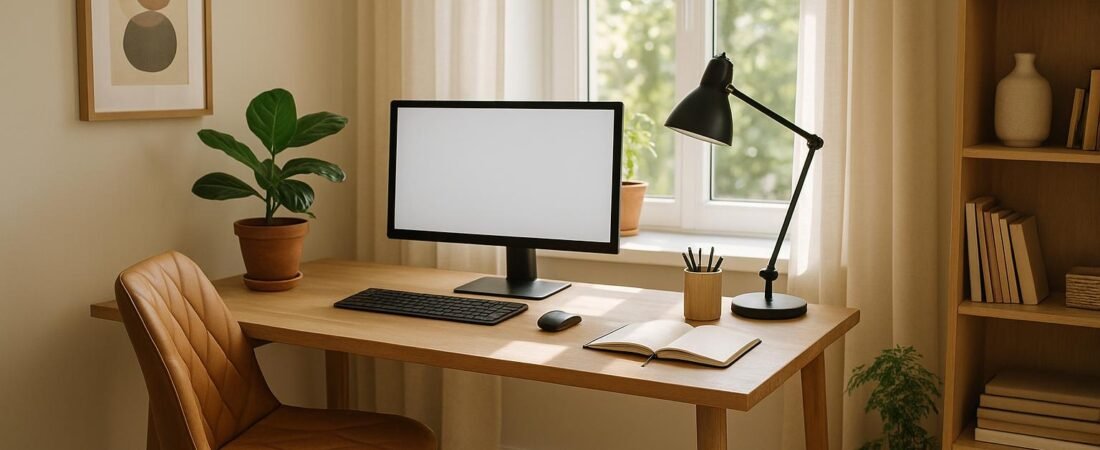
Home Office Interior Design for Productivity and Comfort
Designing a home office is about much more than choosing a stylish desk and a few accessories. The most productive spaces are built around how you actually work: your posture, your daily tasks, your tech, and the size and layout of your home. When ergonomics, lighting, organization, and comfort work together, you get a home office that supports focus and feels good to be in.
This guide breaks down the essential principles of home office interior design and shows you how to apply them in real rooms—whether you have a dedicated office, a corner of the living room, or a nook in your bedroom.
Start With How You Work, Not How It Looks
Before buying anything, look at how you use your workspace day to day:
- What do you do most? Long video calls, deep-focus writing, creative work, or spreadsheet-heavy tasks all have different needs.
- What currently bothers you? Back discomfort, screen glare, clutter, distractions, or lack of storage are common issues.
- What space do you realistically have? A whole room, a section of a shared space, or just a small wall or alcove?
Identify your biggest problem first and design around that. Solving one major pain point—like an uncomfortable chair or harsh lighting—will usually have a bigger impact on your productivity than an entire cosmetic overhaul.
Choose a Dedicated Work Zone
A defined workspace helps your brain switch into “work mode” and makes it easier to log off at the end of the day.
If You Have a Separate Room
A spare room or dedicated home office gives you the most flexibility:
- Place the desk thoughtfully. Ideally near a window for natural light, but not pressed directly against it if glare is an issue.
- Allow circulation space. Make sure you can push your chair back, turn, and stand up without bumping into furniture.
- Use walls for storage. Wall-mounted shelves, pegboards, or cabinets keep floor space open while giving you easy access to daily tools.
If You’re Using a Corner or Shared Room
In compact homes and apartments, you can still create a highly functional home office:
- Define the zone. Use a small area rug, a change in wall color, or a folding screen to visually separate work from leisure.
- Go vertical. Floating shelves, wall rails, and hanging organizers keep the footprint of your desk small.
- Choose multi-purpose furniture. A folding or wall-mounted desk, a storage ottoman, or a sideboard that doubles as a printer station helps the space serve multiple roles.
The goal is a clear boundary—even if invisible—that tells you and others: “This is the work area.”
Prioritize an Ergonomic Setup
Ergonomics is where productivity and comfort truly meet. A well-set-up desk and chair reduce strain, help you concentrate longer, and make your home office feel good to use.
Chair: Your Most Important Investment
- Look for adjustability. Height, backrest angle, and armrests should be adjustable to match your body.
- Support your lower back. Built-in lumbar support or a simple lumbar cushion can help maintain a natural curve in your spine.
- Set the right seat height. Your feet should rest flat on the floor (or a footrest), with knees roughly at 90 degrees.
If a full office chair isn’t possible, improve what you have: add a lumbar pillow, use a footrest, and adjust the chair height so your forearms are close to horizontal when typing.
Desk and Monitor Position
- Desk height. For most people, a standard desk height (around 28–30 inches / 71–76 cm) works if the chair adjusts. Your elbows should be at about a 90-degree angle when typing.
- Monitor height. The top of the screen should be around eye level; you should look slightly downward at the center of the screen.
- Monitor distance. Aim for roughly an arm’s length away; adjust if text feels too small or you’re leaning forward.
Use a monitor arm, a stack of books, or a riser to reach the right height. If you work from a laptop, add a separate keyboard and mouse so you can raise the screen to a comfortable level.
Sit-Stand and Movement
Alternating between sitting and standing can reduce stiffness and maintain energy throughout the day:
- Consider a sit-stand desk. Electric or manual standing desks make it easier to vary your posture.
- Use a converter if space is tight. A desktop riser can turn a regular desk into a standing workstation.
- Build in micro-breaks. Even without standing, schedule short breaks to stretch, walk, and rest your eyes.
The best ergonomic home office is one that encourages gentle movement rather than locking you into a single posture all day.
Layer the Lighting for Focus and Comfort
Good lighting reduces eye strain, improves mood, and makes video calls look more professional. Think in layers rather than relying on a single overhead light.
Use Natural Light Wisely
- Position near a window if possible. Daylight supports alertness and can help regulate your sleep–wake cycle.
- Avoid direct glare. Don’t put your monitor directly in front of or behind a bright window if you can help it.
- Add light control. Sheer curtains, blinds, or adjustable shades let you soften harsh sunlight without losing brightness.
If you’re in a windowless room, mimic natural light with bright but diffused fixtures and a balanced color temperature (often in the 4000–5000K range for a crisp but not harsh feel).
Combine Ambient, Task, and Accent Lighting
- Ambient lighting. This is your general room light—overhead fixtures, wall lights, or a large floor lamp to evenly light the space.
- Task lighting. A desk lamp with an adjustable arm and brightness is ideal for reading, writing, and focused work.
- Accent lighting. Gentle wall lights or a small lamp can add warmth and reduce the contrast between your screen and its surroundings.
For video calls, aim for soft, frontal lighting on your face rather than a strong light source behind you. A simple desk lamp or a clip-on light can dramatically improve your on-camera appearance.
Keep the Layout Calm and Functional
A cluttered, visually noisy space competes for your attention. Thoughtful layout and organization make a home office feel calm, help you find what you need, and reduce decision fatigue.
Organize Around Your Routine
Design your layout based on what you do most often:
- Keep daily essentials within arm’s reach. Notebooks, pens, reference documents, and frequently used tech should be near your primary work zone.
- Zone your storage. Reserve the easiest-to-reach areas for everyday items; put rarely used files and supplies higher up or further away.
- Create a “landing zone.” A tray or small drawer for incoming mail, paperwork, or gadgets prevents them from spreading across your desk.
Tame Cables and Visual Clutter
- Use cable management. Cable clips, under-desk trays, and Velcro ties keep cords off the floor and out of sight.
- Hide bulk where possible. A closed cabinet or box for routers, power strips, and chargers keeps the space feeling cleaner.
- Limit items on the desktop. Keep only what you use daily on the work surface; everything else should have a designated home.
Even small organizational upgrades—like a drawer insert or a labeled file box—can significantly improve how it feels to sit down and get started.
Design for Shared or Compact Spaces
Not everyone has the luxury of a full home office. In a multi-purpose room, separation and flexibility matter most.
Create Clear Boundaries
- Visual dividers. Folding screens, bookshelves, plants, or curtains can define a workspace within a larger room.
- Directional cues. Position your desk so you face away from the bed or TV; this small shift can reduce distraction.
- End-of-day reset. A quick routine—closing the laptop, turning off a task lamp, or rolling a chair back into place—signals the end of work.
Use Flexible Furniture
- Folding and wall-mounted desks. Ideal for studio apartments or living rooms that need to “transform” after hours.
- Chairs that blend in. An ergonomic chair in a neutral color or a more residential style can feel less office-like in a shared space.
- Storage that conceals. Cabinets, credenzas, or storage ottomans let you hide office supplies when guests come over.
The aim is to make work visible and accessible when needed—and easy to “put away” when it’s time to switch off.
Make the Room Comfortable to Spend Time In
Productivity isn’t just about efficiency; it’s also about how your space makes you feel. A comfortable, visually calming environment can reduce stress and make long workdays more sustainable.
Choose a Supportive Color Palette
- Soft neutrals and muted tones. Grays, beiges, soft greens, and blues are often easier on the eyes and create a calm backdrop.
- Use bold colors as accents. A single colored chair, rug, or piece of art can add energy without overwhelming the room.
- Consider how colors impact focus. Cooler tones tend to feel more focused; warmer tones often feel more cozy and relaxed.
Add Natural Elements and Texture
- Plants. Even one or two low-maintenance plants can make the space feel more alive and improve air quality slightly.
- Natural materials. Wood, cork, linen, and woven textures add warmth and soften more technical elements like screens and metal.
- Soft furnishings. A rug under the desk, curtains, or a throw over your chair can make the office feel more inviting.
Use Personal Touches—Strategically
- Curate, don’t clutter. A few meaningful photos, a favorite print, or one sculptural object can personalize the space.
- Keep the work surface clear. Place most décor on shelves or walls to keep your actual desk functional.
- Design for future you. Choose elements you won’t tire of quickly; trends fade, but calm and comfort stay useful.
Personalization should support focus, not compete with it. When in doubt, keep the area around your monitor and primary work line of sight relatively simple.
Plan for Technology and Sound
Your home office layout should work with your technology, not fight it. Poor connectivity, too few outlets, or constant noise can undo even the most beautiful design.
Get the Tech Basics Right
- Power and outlets. Make sure you have enough easily accessible outlets for your equipment, including chargers and lamps.
- Cable and device placement. Place your router, external drives, and printers where they’re accessible but not in the way.
- Connectivity. If Wi-Fi is weak, consider a mesh system or wired connection, especially for video-heavy work.
Manage Noise and Acoustics
- Soften the room. Rugs, curtains, upholstered furniture, and wall hangings reduce echo and improve sound on calls.
- Consider placement. Move your desk away from the noisiest walls or windows if possible (e.g.,
Discover More from Didier Lancelot
Amazon Author page: amazon.com/author/didierlancelot
Narmer Store: narmerstore.orgAI and Technology Ebooks
- Creative AI: Animated Drawings, Manga & Illustrations
- Build a Game with AI: The No-Code Guide
- AI Image Generation Made Easy
- Build a Website with AI: The No-Code Guide
- How to Connect AI to Your Blog: The Ultimate Automation Guide
- AI Productivity Habits: Get More Done in Less Time
- AI Avatars Made Easy
- The Book of AI Prompts: 100+ Proven Prompts
- Make Music with AI: Suno, Udio and AI Music Generators
- Click to Cash
- The Automated Edge: Outwork, Outpace, and Outperform with AI
- AI Side Hustle: How to Make Money with ChatGPT and AI Tools
- Work Smarter with AI
Health, Lifestyle and Home Ebooks
- Hidden Superfoods: The World’s Most Powerful Healing Foods
- Spanish Food: The Complete Cookbook for Authentic Home Cooking
- The Science of Happiness Explained
- The Psychology of Success
- The Secret Sauce of Consistency: What the Experts Don’t Tell You About Fitness
- The Complete Home Bartender’s Guide: Link 1 | Link 2
- Natural Beauty, Made Simple: Easy DIY Organic Skincare Recipes
- Garden Made Simple: Easy, Beginner-Friendly Techniques
- The Dog Training Bible
Games and Music